Essentials of Accessibility
The University of California, Merced is committed to creating learning environments that are accessible to all. Student Accessibility Services mission is to ensure students with disabilities have “equal access” and can engage equally in online learning environment. Digital Accessibility refers to implementation of best practices, universal design principles and compliance with American with Disability Act of 1990, Section 504 and Section 508 of Rehabilitation Act of 1973 in accordance with state and federal laws. This policy requires that all digital and information technology is developed, procured, maintained and is made equally accessible to individuals with disabilities.
What is Accessibility?
Accessibility ensures that people with disabilities have access to facilities and to information technology. It ensures equitable access to all:
- Access the same information
- Engage equally in same interactions
- Use from same services
To enable all users to access information, it is important to understand the needs and affordances as explained below:
- Vision: Low vision, blind, colorblind
- Affordances: Screen readers, Braille display, High contrast settings, and magnifiers
- Hearing: Deaf, hard of hearing, noisy environment
- Affordances: Captioning, Subtitles, Transcripts, Sign language
- Mobility: Muscular dystrophy, arthritis, injury, etc
- Affordances: Keyboard navigation, Speech to text
- Cognitive: Learning Disability, dyslexia, ADHD, etc
- Affordances: Digital content layout, Information organization
- Learning: Learning styles, preferences, etc
- Affordances: Visual learners, English as Second Language (ESL)
What is Universal Design Learning?
Universal Design Learning (UDL) is a proactive method to connect theory with practice ensuring everyone can access, understand, engage, navigate and interact regardless of the ability or preference regardless of their age, size, ability or disability. This is not a special requirement, for the benefit of only a minority of the population. It is a fundamental condition of a good design and keeps the diverse needs and abilities of all throughout the design process.
There are seven principles of Universal Design:
- Equitable Use
- Flexibility in Use
- Simple and intuitive use
- Perceptible information
- Tolerance for error
- Low physical effort
- Size and space for approach and use
Designing for Accessibility: Do’s and Don’t
Proactively designing course content to make it accessible can take some work, but it means it is done in advance and is mindfully integrated in the course design ahead of time. Follow the suggested resources below to create your accessible course content:
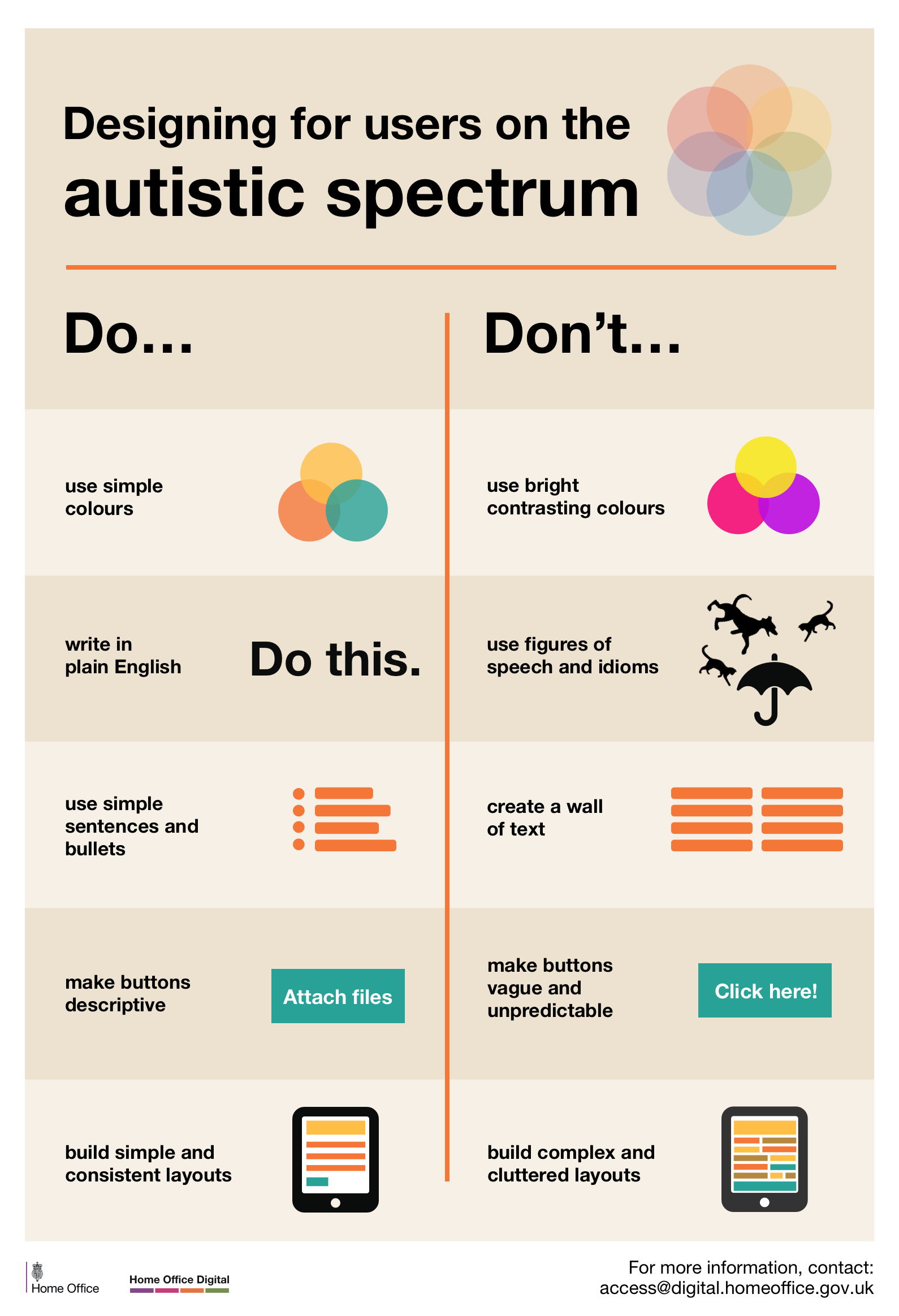
- Designing for users for the autistic spectrum
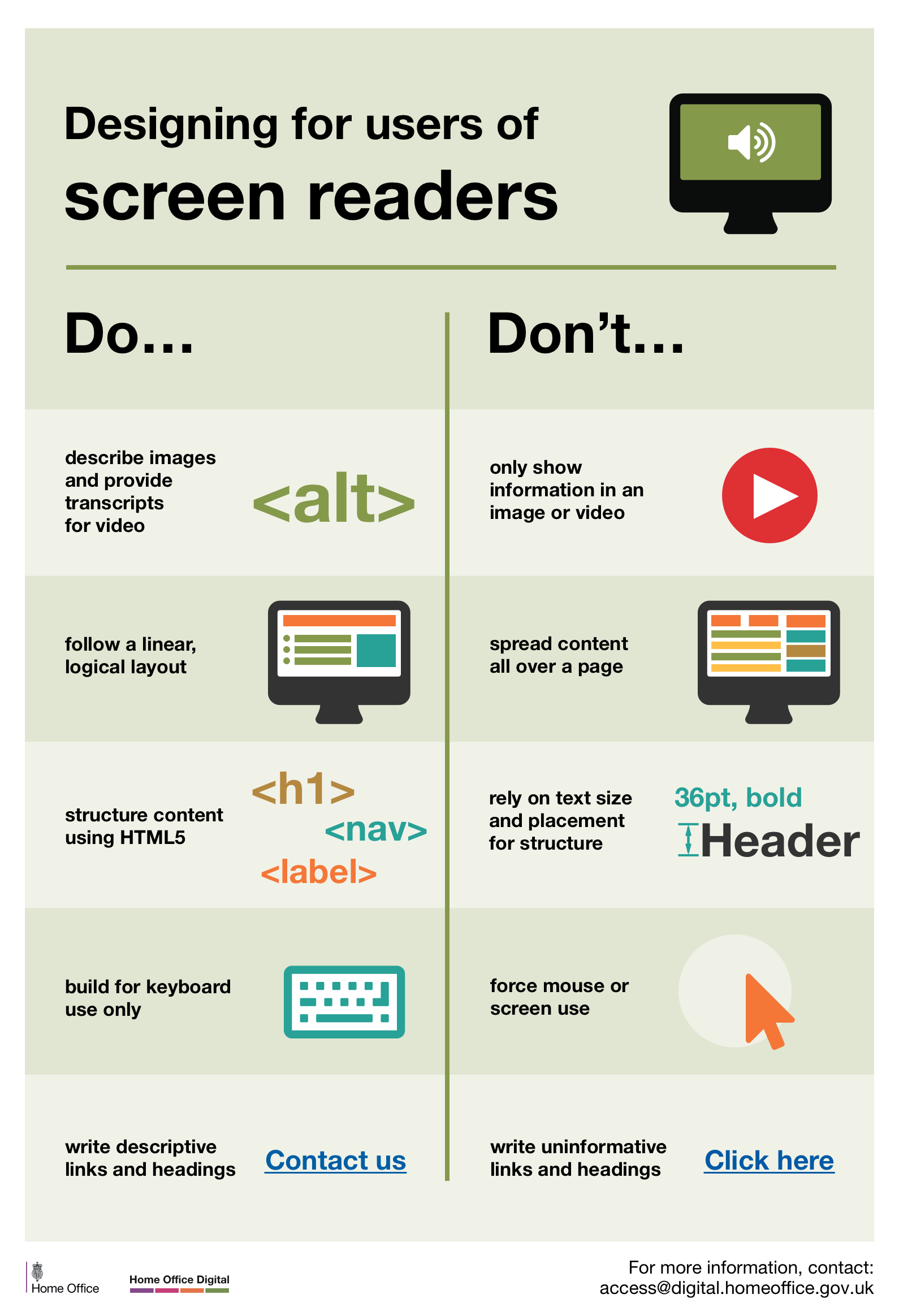
- Designing for users for screen readers
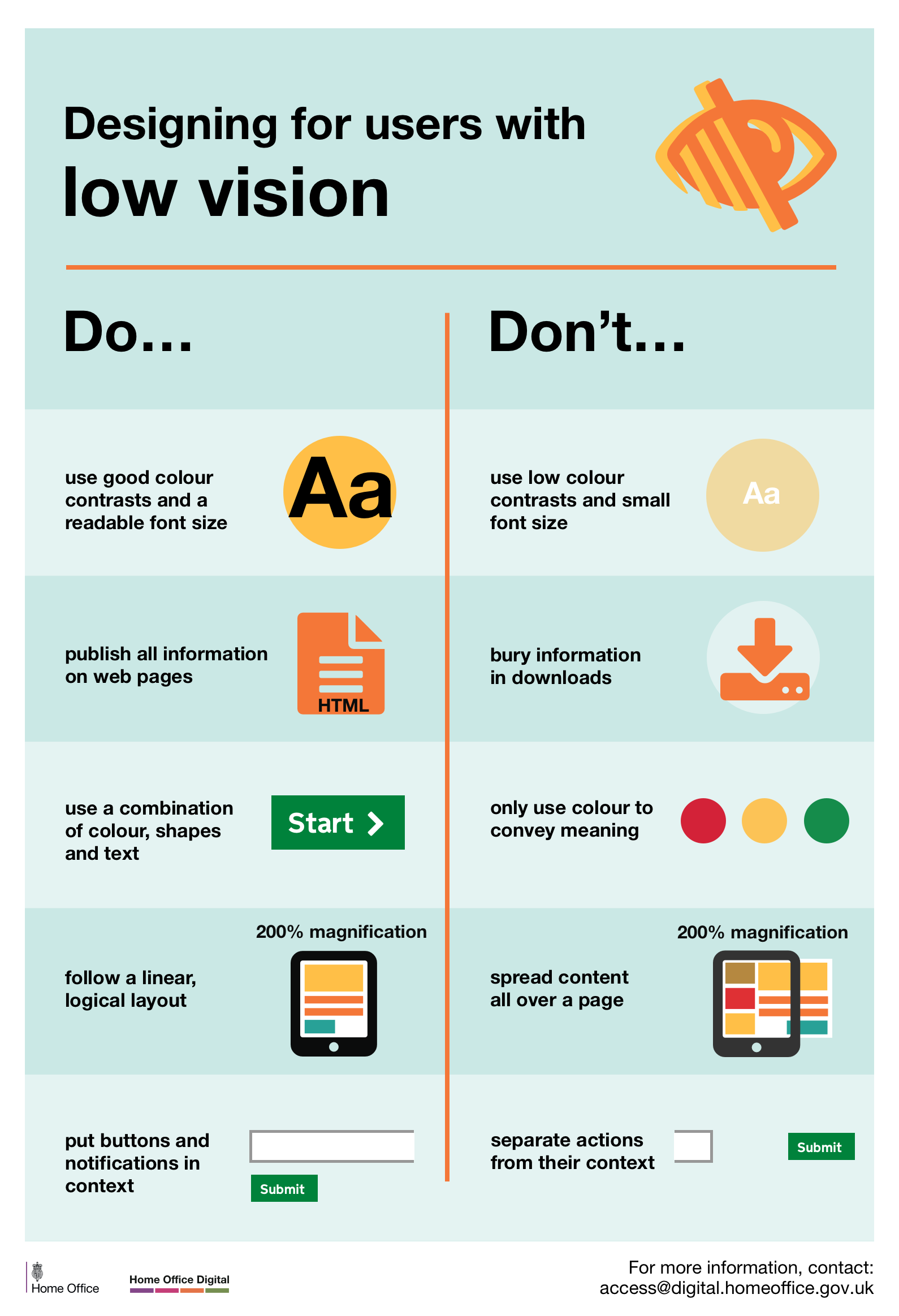
- Designing for users for low vision
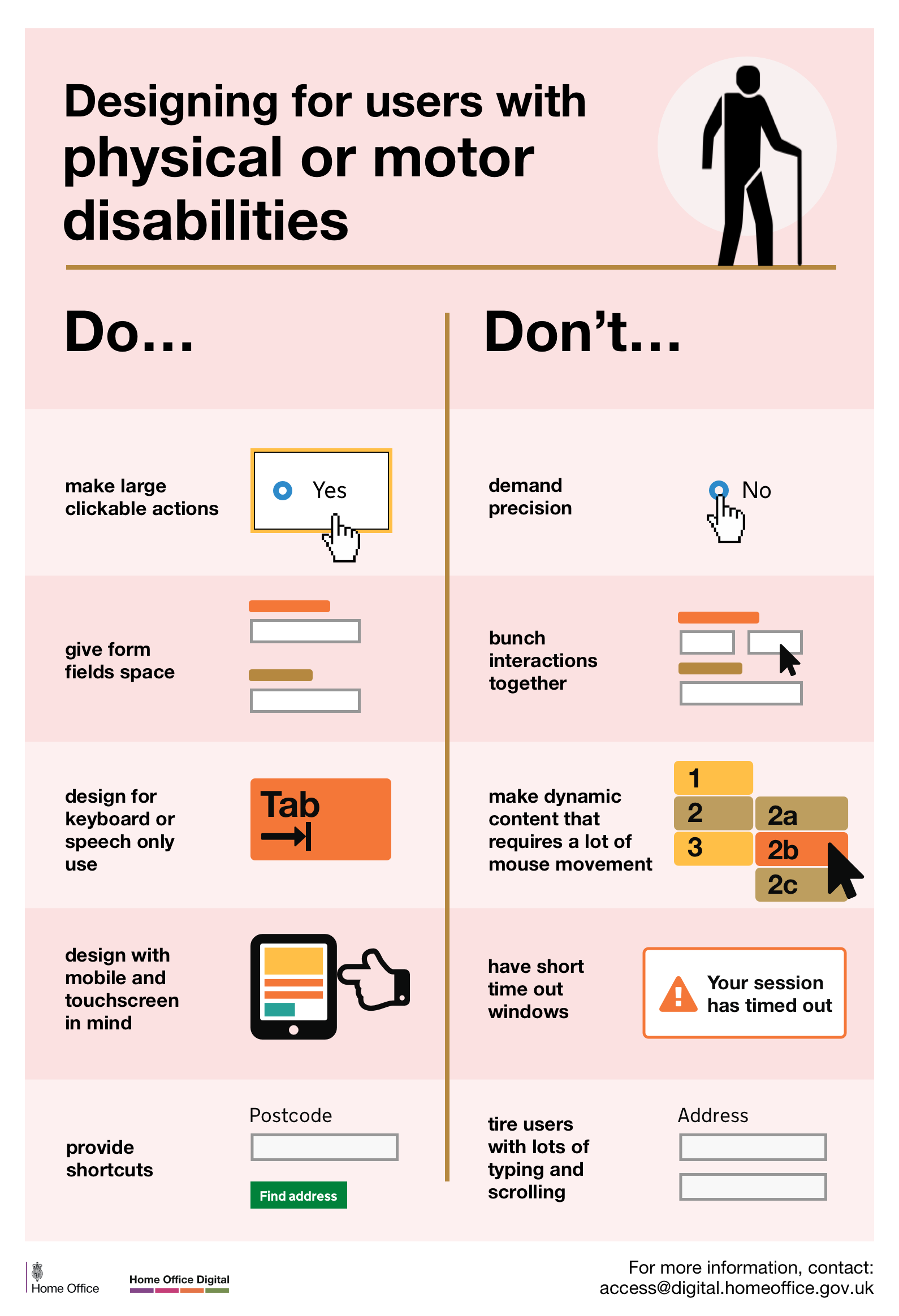
- Designing for users for motor disability
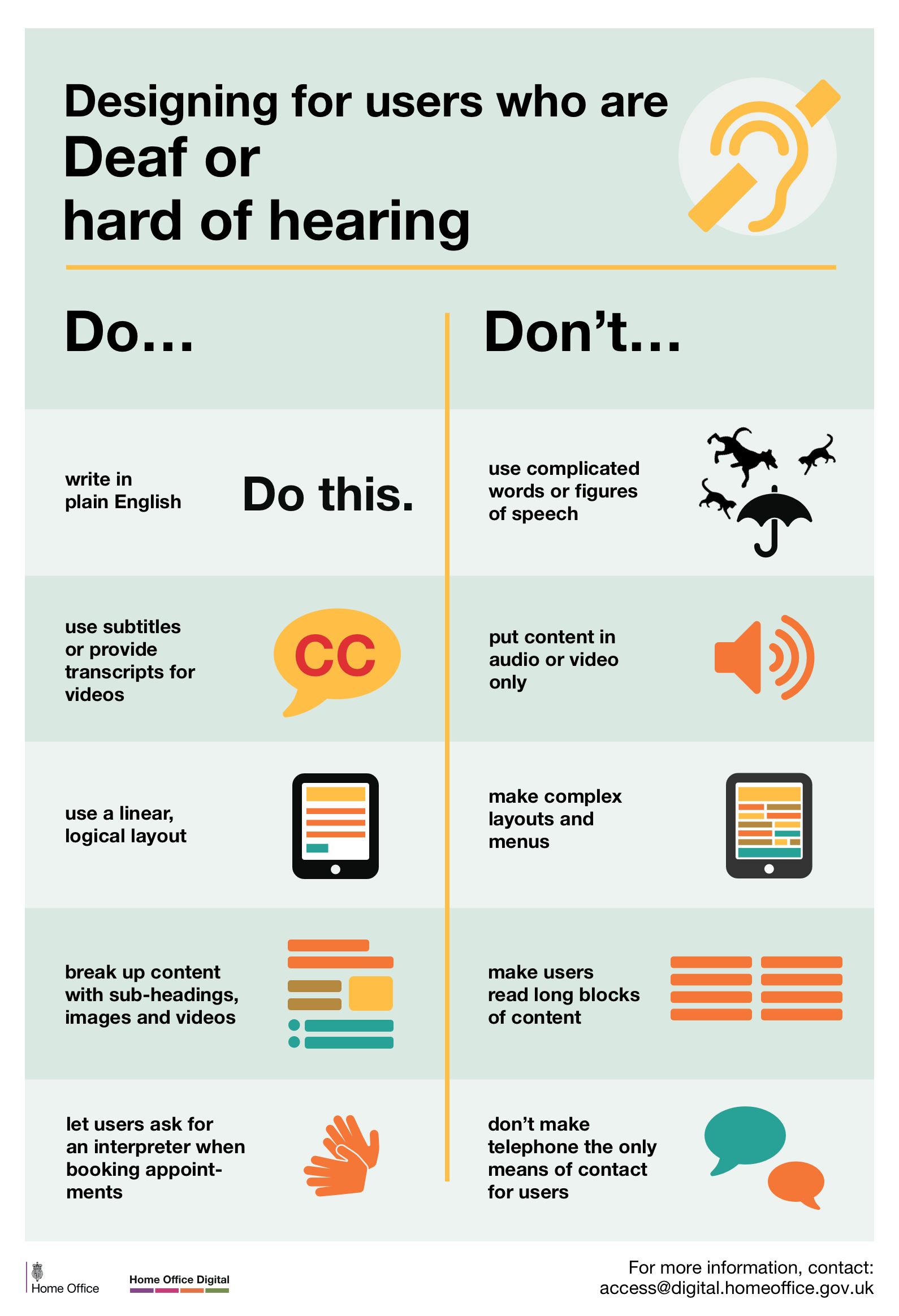
- Designing for users for deaf or hard of hearing
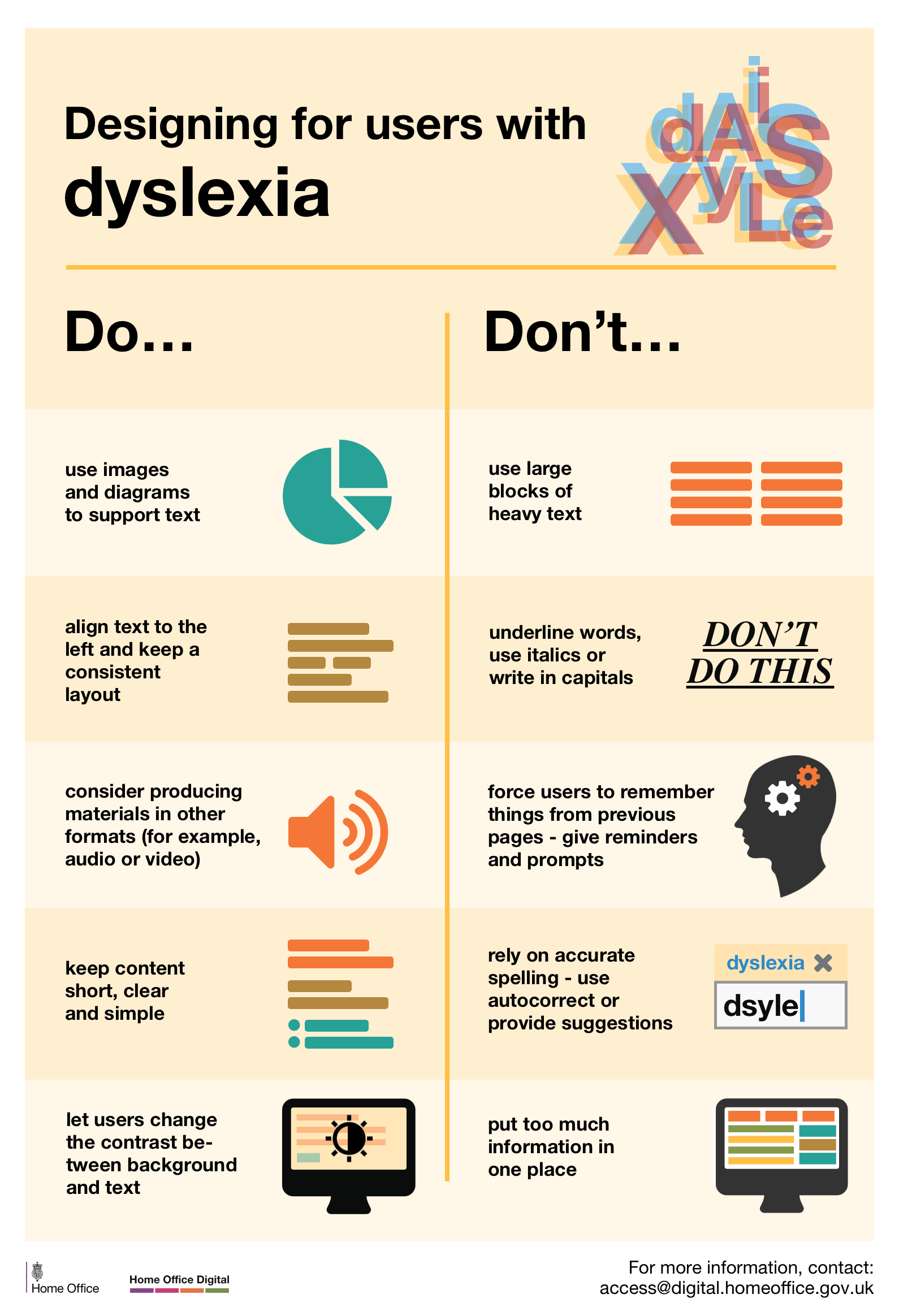
- Designing for users with dyslexia
Best Practices for Designing with Accessibility
The standard guidelines for digital content accessibility are organized around four principles: Perceivable, Operable, Understandable, and Robust (P.O.U.R).
Perceivable: Ensuring that everyone can perceive your content even if they access information in a non-typical way.
-
Provide Alt-Text for Images. The purpose of alt text is to allow low vision or blind users with the text equivalent of image. Since, screen readers cannot convert the images to words. Thus, providing short (8-120 characters or less) makes the document user friendly. Canvas allows to insert an alternative text to make the digital content equitable for all.
-
Provide captions or transcripts for media. The purpose of providing captions or transcripts is to allow hearing impaired individuals to access audio in text format. Some situations require only transcripts and others require captions. To understand captioning and transcription elaborately follow the University of California guidelines. UC Merced supports Kaltura video platform. This platform provides automatic machine generated transcription that can be interfaced in your video portal.
-
Use color combinations that are high-contrast. Some users with visual disabilities have difficulty perceiving text if there is too little contrast between foreground and background. The W3C Web Content Accessibility Guidelines 2.0 require that color combinations meet clearly defined contrast ratios. To be able to meet the guidelines, text or images of text must have a contrast ratio of at least 4.5:1. There are several free tools that make it easy to check color combinations. WebAIM is free web-based tool that allows you to add the foreground and background color and it instantaneously calculates the contrast ratio. This result can then determine if the contrast ratio meets the standards. In addition, Microsoft Powerpoint is one of the most popular tools for creating a slide show presention. WebAIM provides guidelines to create Powerpoint accessible.
-
Avoid using color method only to communicate information. Some users are unable to perceive color differences. Thus, it is important to avoid using color only to communicate information. For example, if link text is blue, it should also be underlined so users who are unable to perceive color differences links from surrounding text. This feature can be added in Canvas and Microsoft Word to make content accessible to all.
-
Use Tables to show data relationships in a grid-like format. The purpose of data tables is to present information in a grid format. Sighted users can visually scan a table and associate information. Someone that cannot see the table relies on assistive technologies like screen reader. Accessible tables allow screen readers to access the information for visually individuals. As the content creator you can add markup that defines the relationship between header cells and data cells. Accessible tables can be created in both: Canvas and Microsoft Word by adding a brief descriptive text.
Operable: Allowing users to operate application using a variety of methods and forms of technology.
-
Add Headings to Canvas Pages and Microsoft Word documents. Many users are physically unable to use a mouse, and might be navigating through page using keyboard alone. The purpose of providing headings when creating Canvas pages or Microsoft Word documents is to allow individuals access to structured digital material that can be accessed by screen readers and text-to-speech assistive technology tools. Providing headings has two-fold purpose: it makes it simpler for the users to quickly navigate using headings without reading the entire document and it also provides a structured outline. To add headings in Canvas refer to the “Change Text Style” section of this web-page. To add headings in Microsoft Word refer to this resource.
-
Provide descriptive hyper-lined text. The purpose of providing descriptive links is to provide users with proper context of where the link will take them. Screen reader users often navigate websites by going from link-to-link and it helps them in identifying relevant information. To add link to your text avoid using extraneous words for example ‘click here” or “more”. Instead provide a description to the link and hyperlink the description. Canvas allows you to add descriptive hyperlink to make digital content accessible for all.
Understandable. All your content should be understandable, clear and concise and should allow users to explore it at their own pace.
- Use consistent navigation and orientation. Consistency in the interface enables less cognitive overload for the users. It helps users to familiarize the structure across the canvas site without getting frustrated. Inconsistency or lack of consistent structure can be disruptive for users who use assistive technology, such as screen reader or screen magnifier software. To make the Canvas course site consistent, structure the course so that the appearance of the presented material is positioned with similar pattern for each modular unit. When using Canvas you can structure the course site and the pages that provides descriptive titles, consistent headings, and ensures consistent navigation.
Robust. Ensure the content can be accessed regardless of the users operating system, browser, browser window.
- Perform accessibility check. Ensure that the content is compatible with other assistive technology tools e.g., screen reader, magnifiers, etc by performing an accessibility check. Rich Content Editor provided in Canvas, includes an accessibility tool that checks common accessibility errors within the editor. This tool can help you design course content while considering accessibility attributes and is located in the Rich Content Editor menu bar. Learn how to use the Accessibility Checker in the Rich Content Editor.
Need Help with Student Accessibility?
If you are a faculty and need help or have questions please contact Student Accessibility Services @ UC Merced. Email access@ucmerced.edu or Call 209-228-4661.